

NewWeb app and Windows · version 2.2.0
Professional Traverse & Level Adjustment: precision in every point
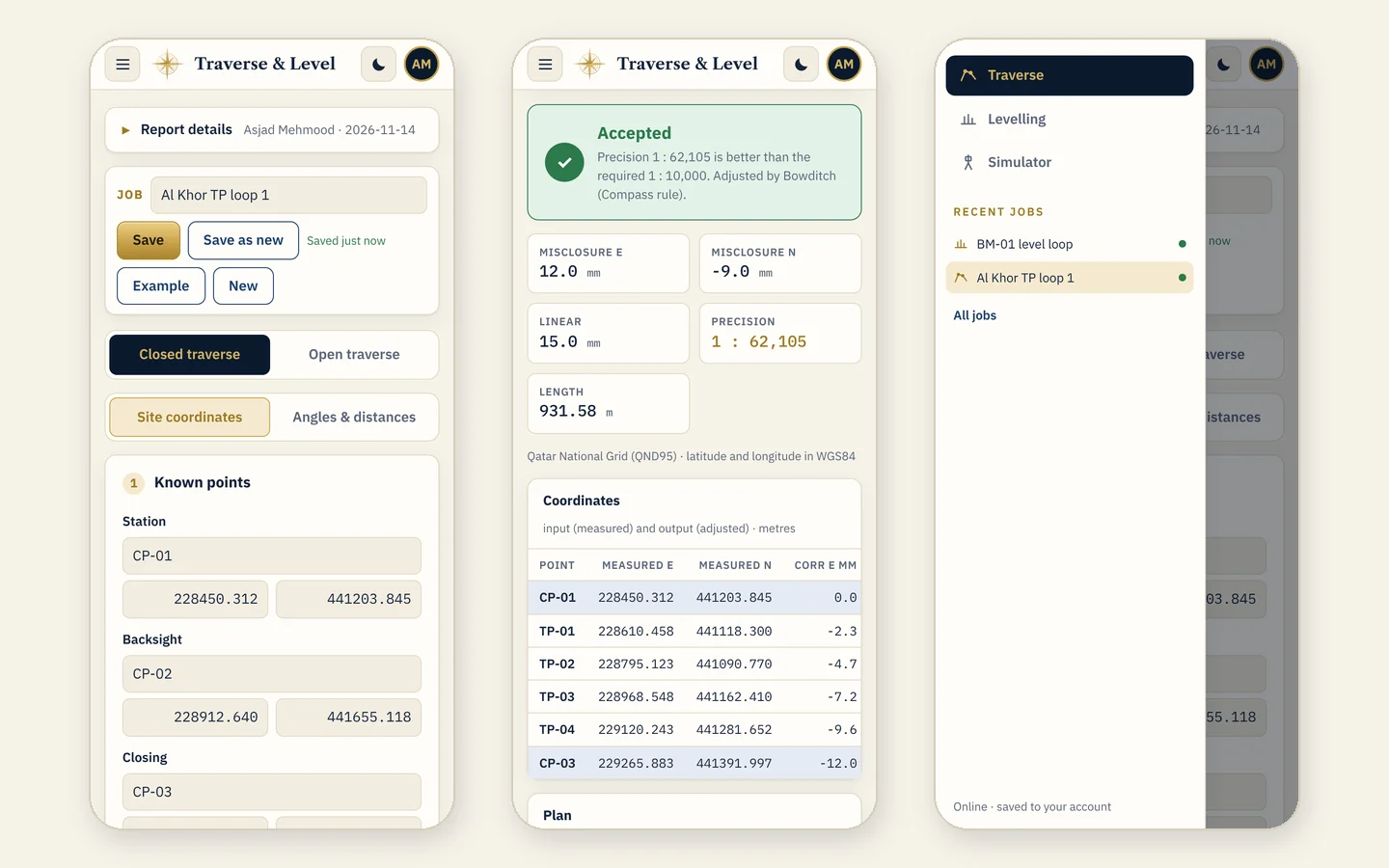
Enter the coordinates you measure on site, close on a known point and get an adjusted, checked result with a signed PDF report. Level books are reduced, checked and adjusted the same way. Every job is saved to your account, ready to open, copy or share.
Free with your Excel to KML account · Works offline after your first login · Watch the intro
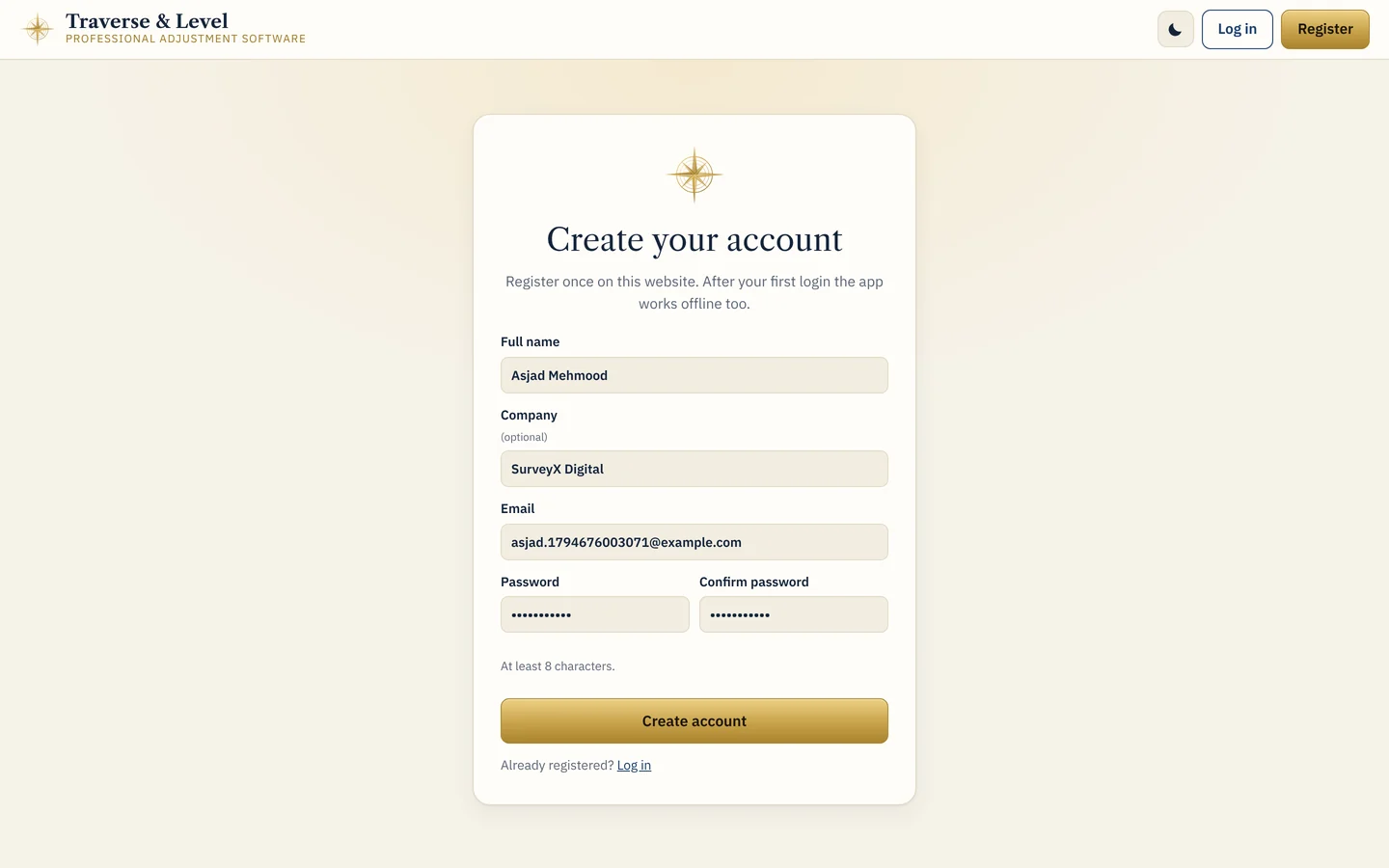
1Create your free accountRegister, or log in with your Excel to KML account.
1Create your free accountRegister, or log in with your Excel to KML account.
Video
Watch the intro
What it does
From the field book to the signed report
Coordinates or field book
The points as measured on site, or the field book itself: angles or bearings and distances, with side shots and levels. Closed, open, or open on a closing point.
Bowditch, Transit, Equal or least squares
Spread the misclosure your way, with angular, linear and level checks against your tolerances, or adjust a field book by least squares with error ellipses.
Levelling
Rise & Fall or Height of Instrument, arithmetic checks, misclosure against your allowable and adjusted RLs.
Signed PDF reports
Report details, closure check, field book, input and output coordinates, bearings, sketch and signature boxes. Also CSV and Google Earth.
Your dashboard
Every traverse and level run saved to your exceltokml.com account, with status, search, copy and activity. Works offline after your first login.
Share with your team
Send a job to a checker, engineer or client by email. They open a copy from their own dashboard.
Traverse simulator
Watch a total station observe a traverse with realistic errors, then adjust it. Made for training.
Qatar National Grid
The grid's scale factor is worked out where the traverse is, and every point gets its WGS84 latitude and longitude, as in Excel to KML.
Inside the app
17 screens, in the order you work
Account, traverse, levelling, simulator and sharing. Tap a screen to read its page in the user manual.
Start
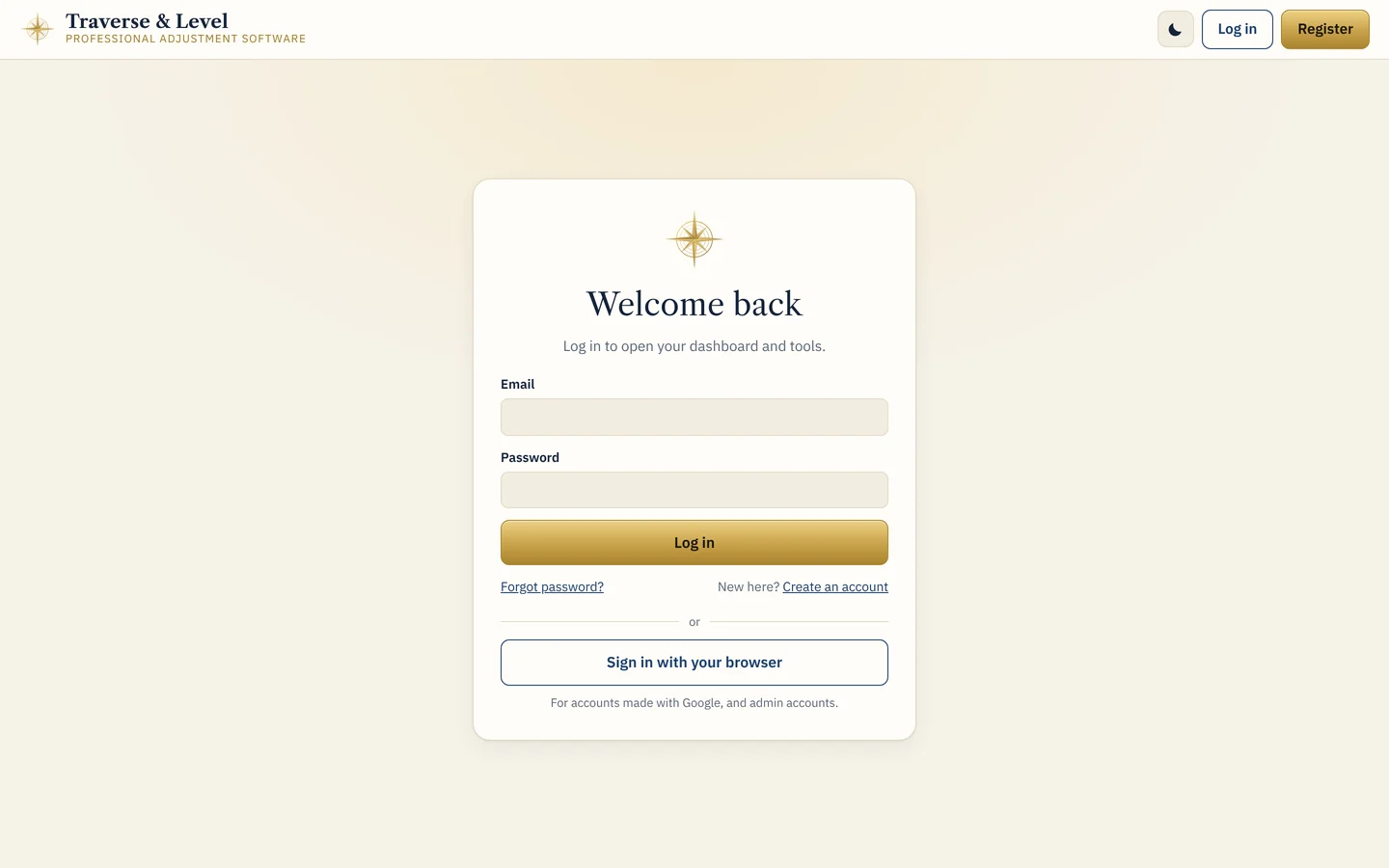
01Log in
The app opens on Log in. Use your exceltokml.com account, or sign in with your browser for Google and admin accounts.
02Your account
Register once with your name, email and password. It is the same account as exceltokml.com.
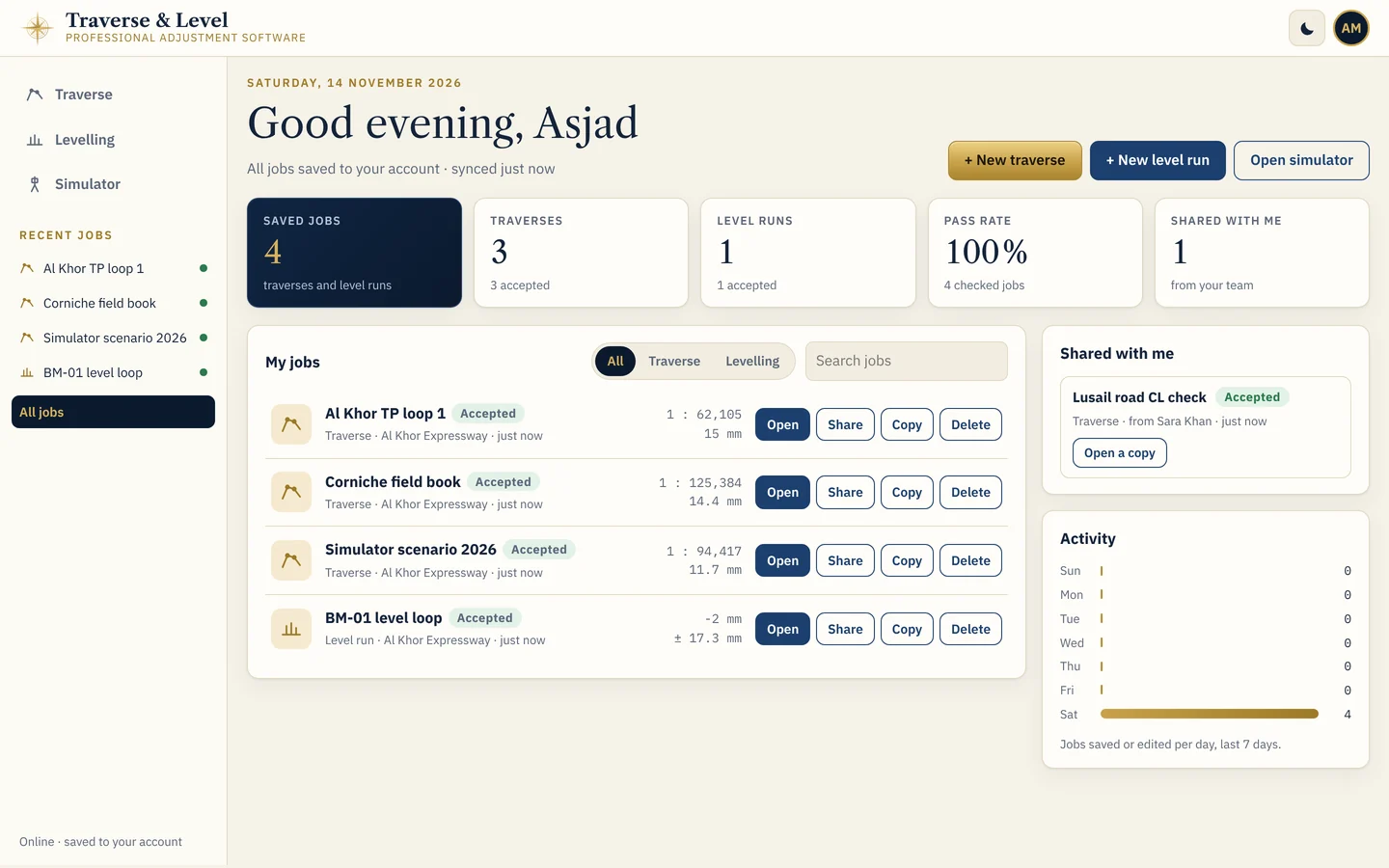
03Dashboard
From the profile menu or All jobs: every saved traverse and level run, with its status and key result, plus jobs shared with you.
Traverse
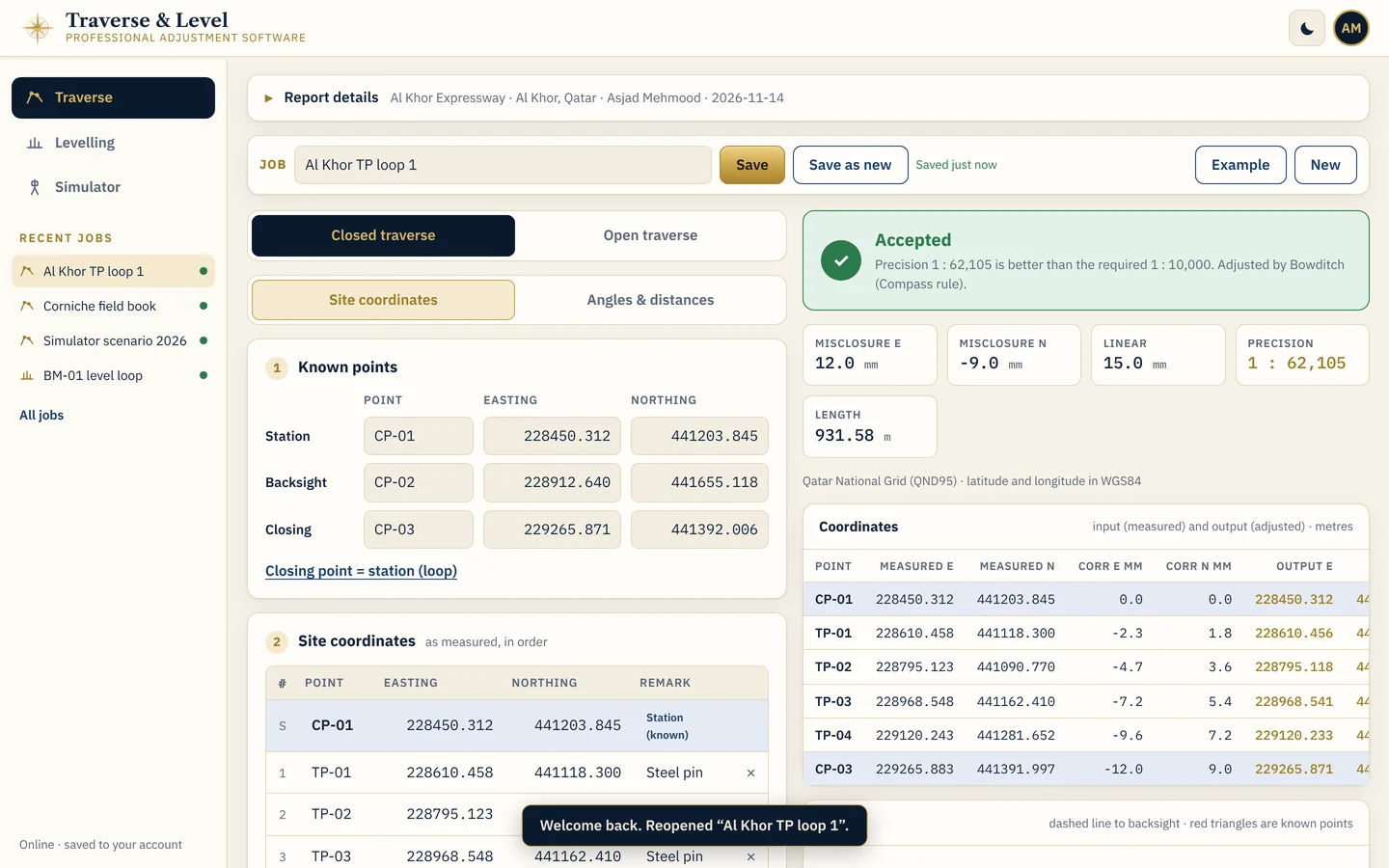
04Back to your last job
After you log in, the job you had open opens again. The sidebar holds the tools and your recent jobs.
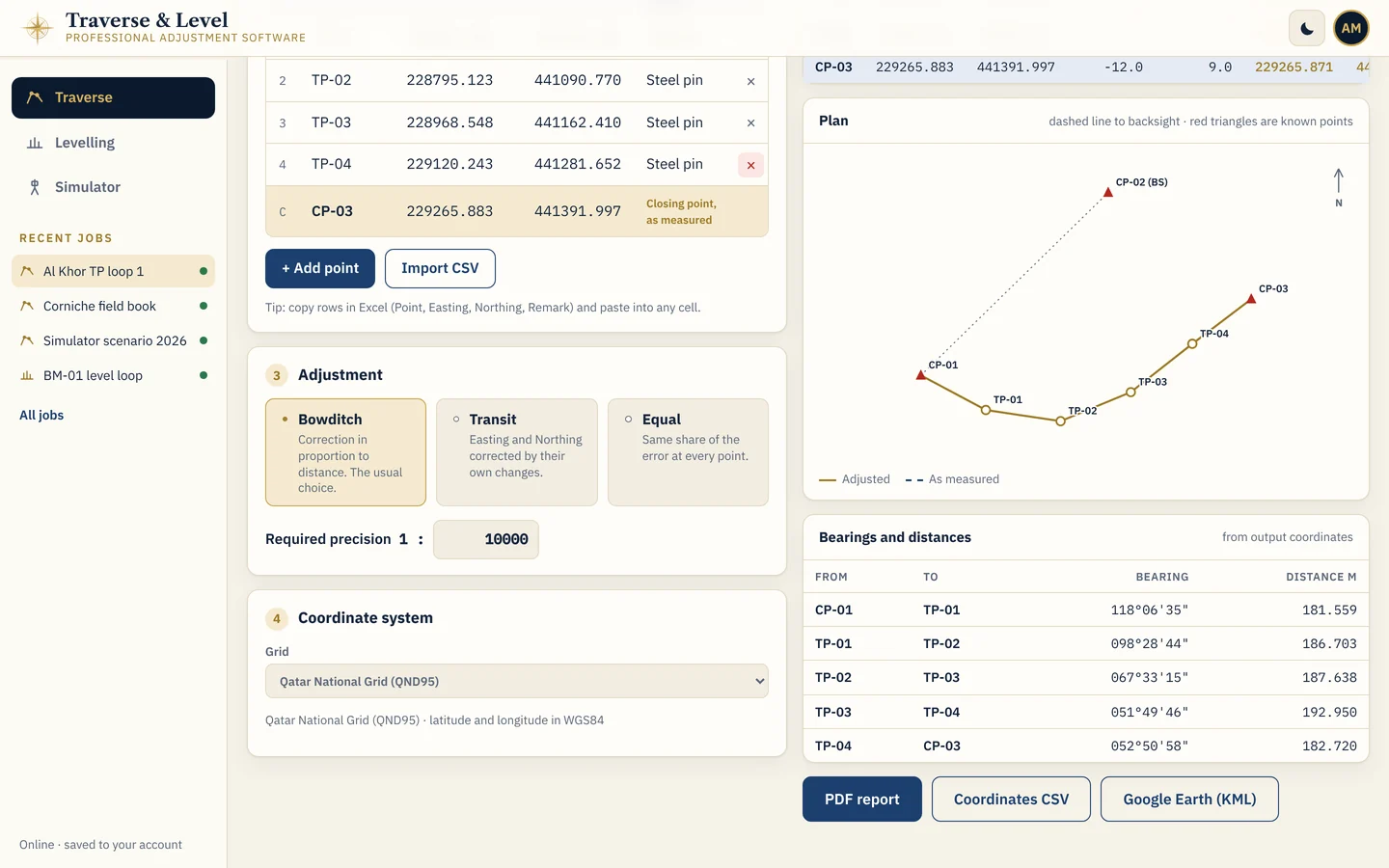
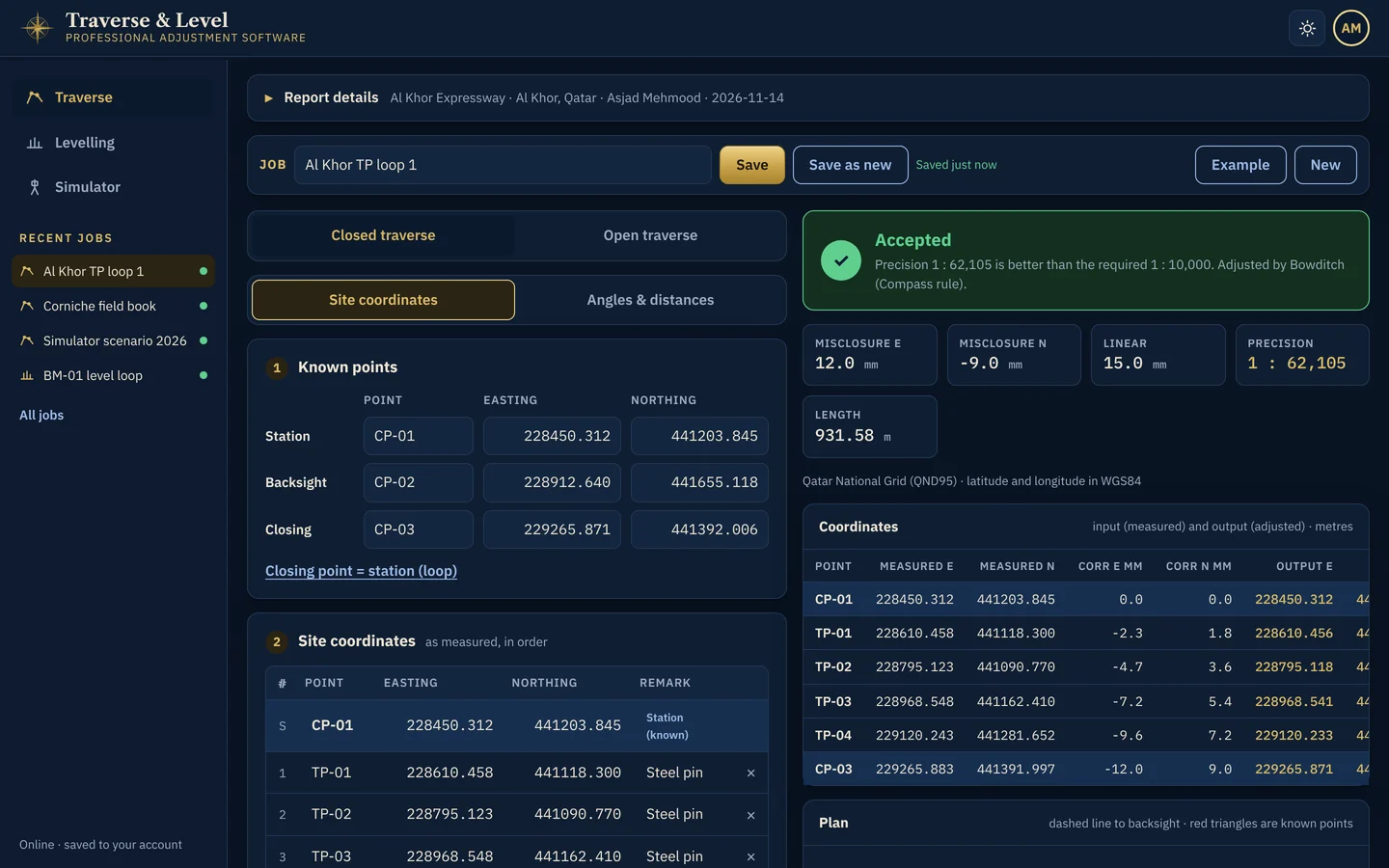
05Site coordinates and plan
The points as measured, the adjustment method and the plan of the adjusted and measured lines.
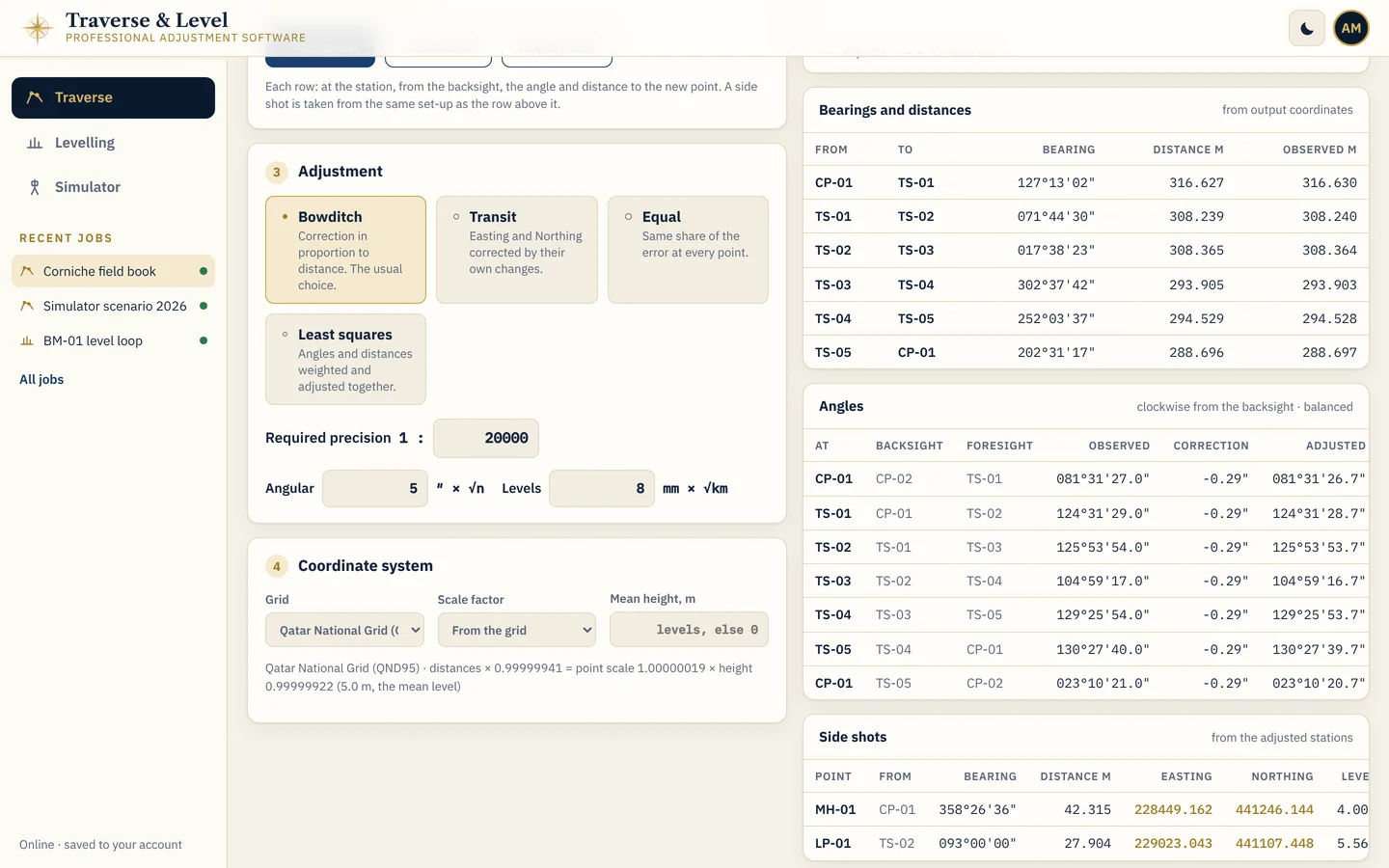
06Bearings, angles and side shots
Whole-circle bearings against the observed distances, the balanced angles and the side shots from the adjusted stations.
Angles & distances
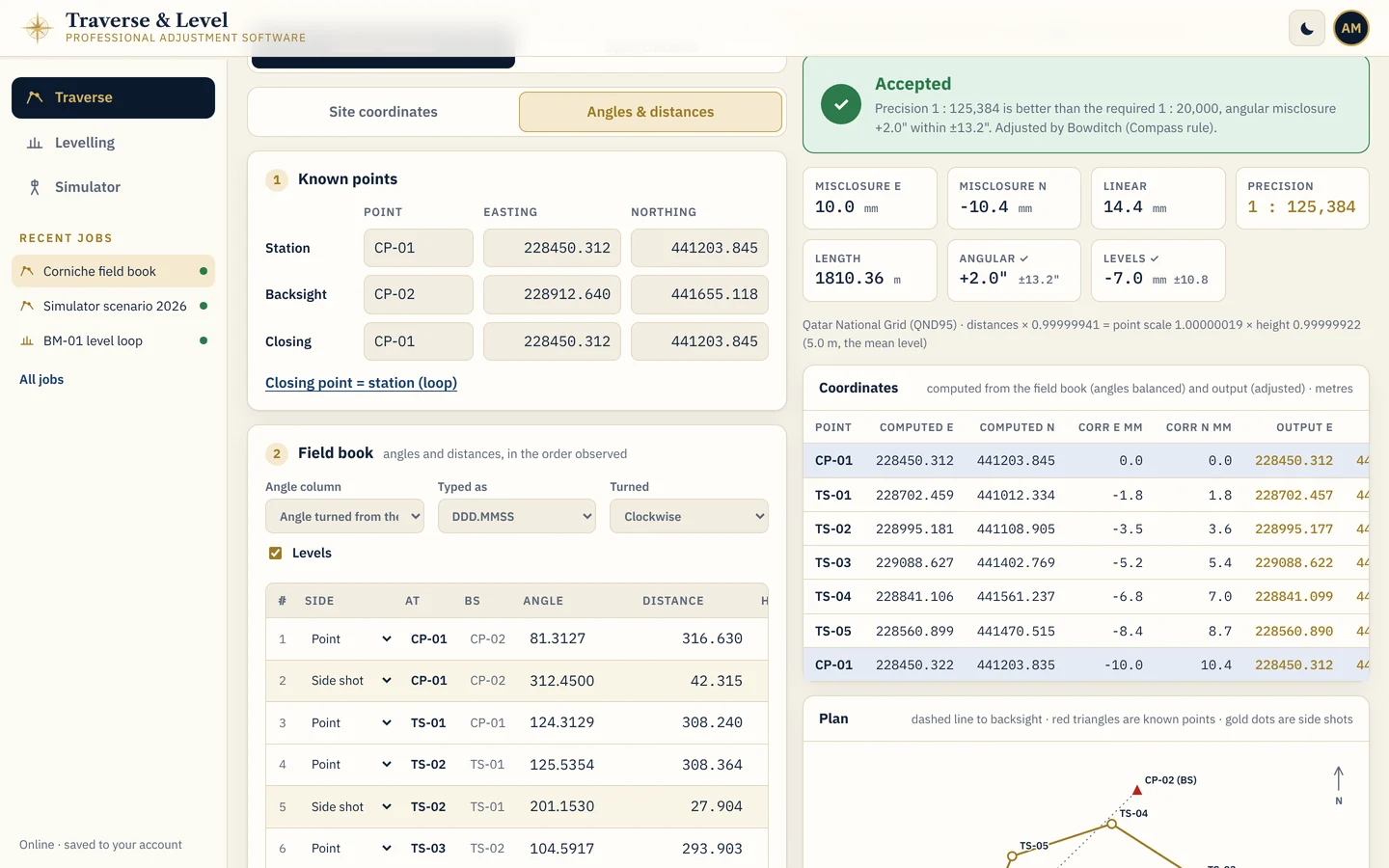
07Field book
Angles turned from the backsight and distances, side shots and levels, with the angular and level checks.
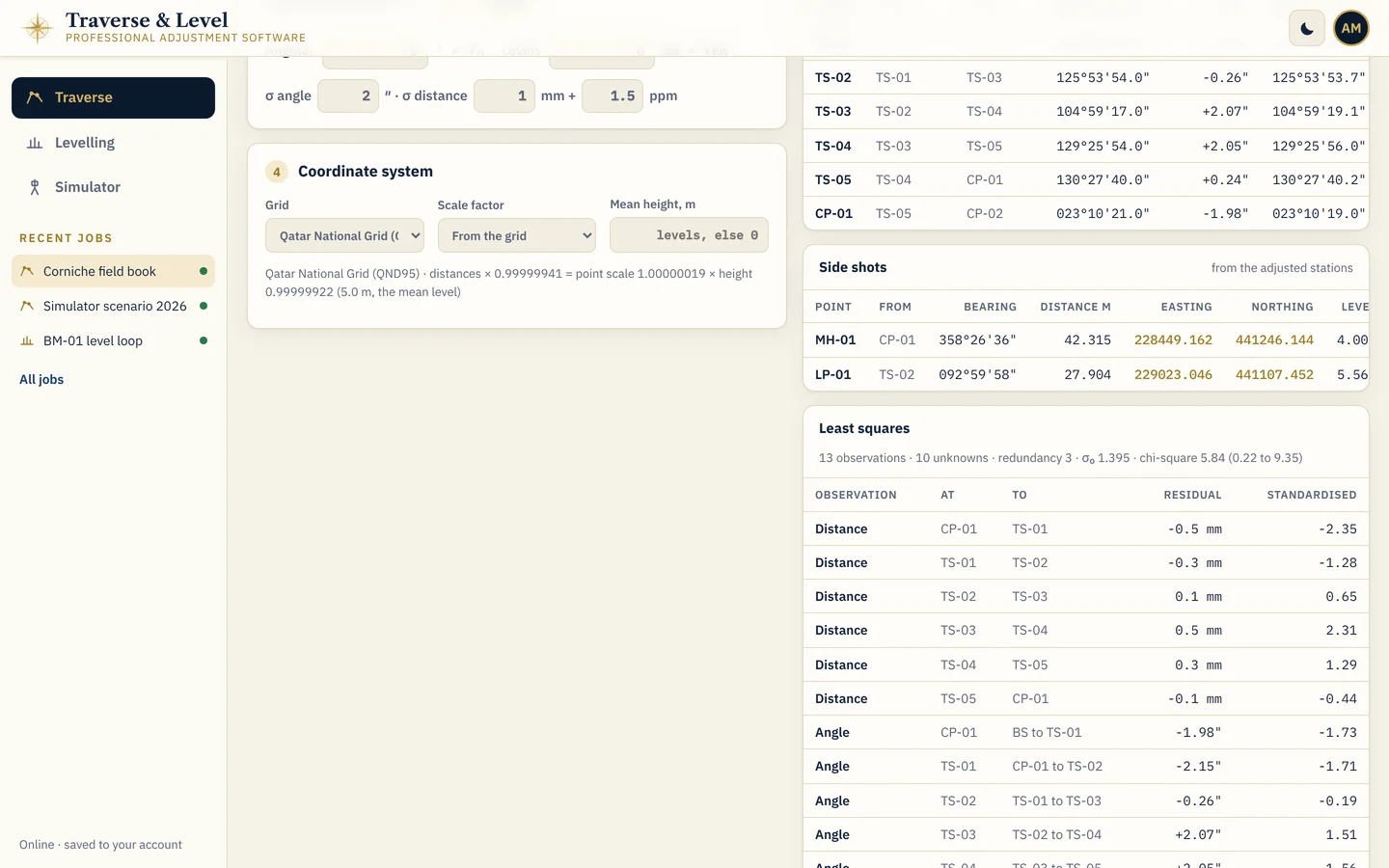
08Least squares
Angles and distances adjusted together by their weights, with residuals, error ellipses and the chi-square test.
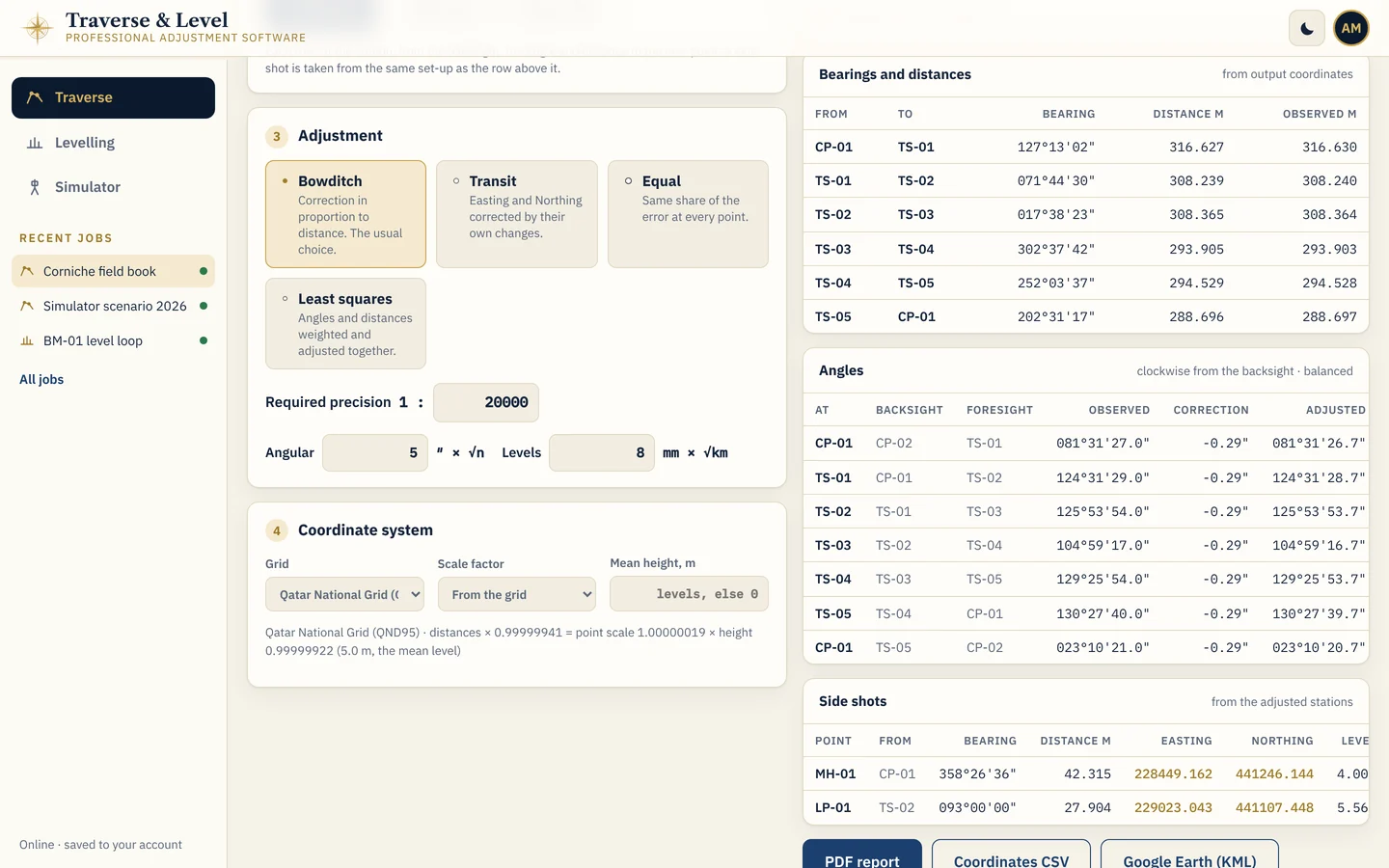
09Qatar National Grid
The scale factor worked out for the job, and WGS84 latitude and longitude for every point, as in Excel to KML.
Levelling and reports
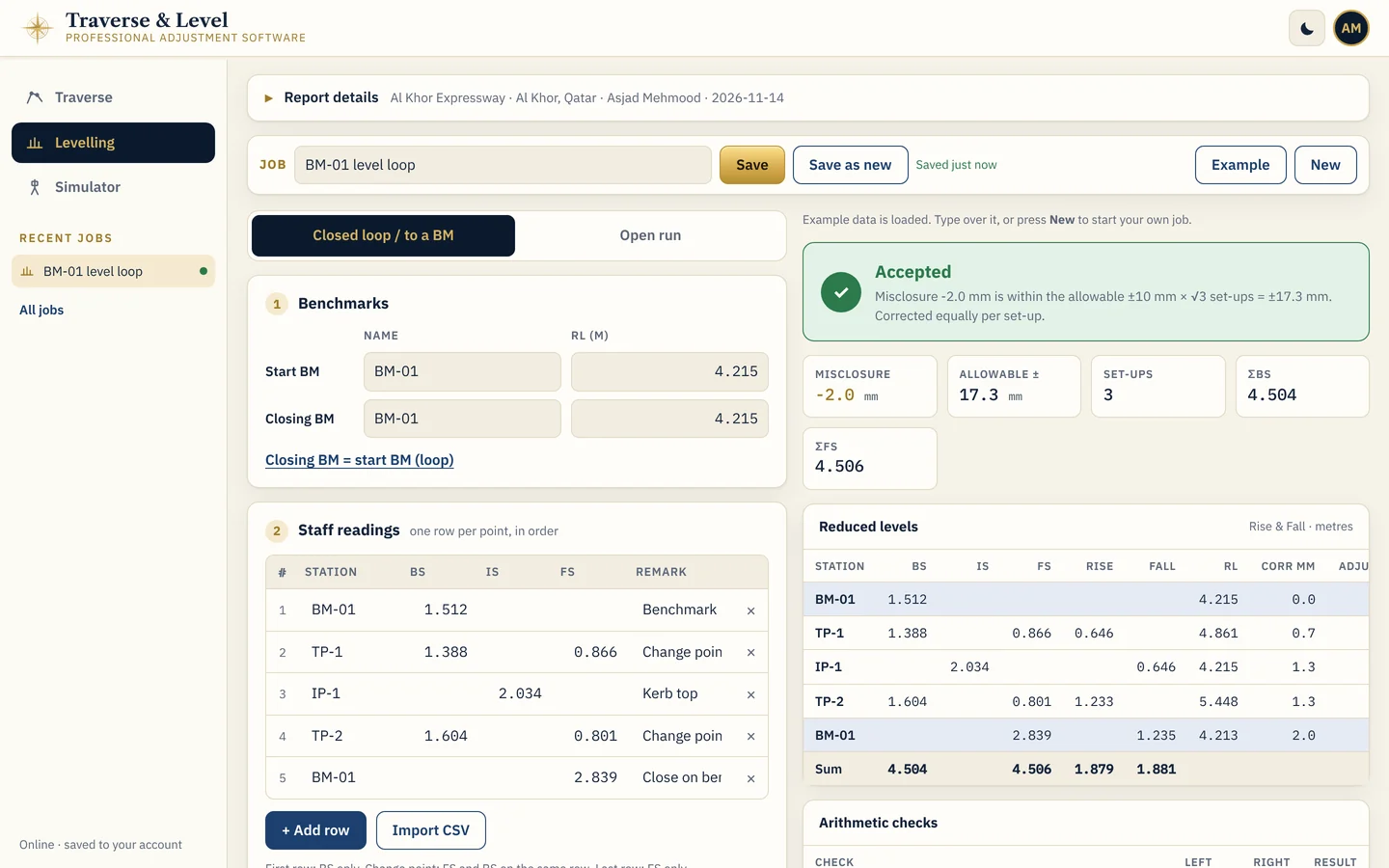
10Level book
Start and closing benchmarks, then BS, IS and FS on one row per point. Import a CSV or paste from Excel.
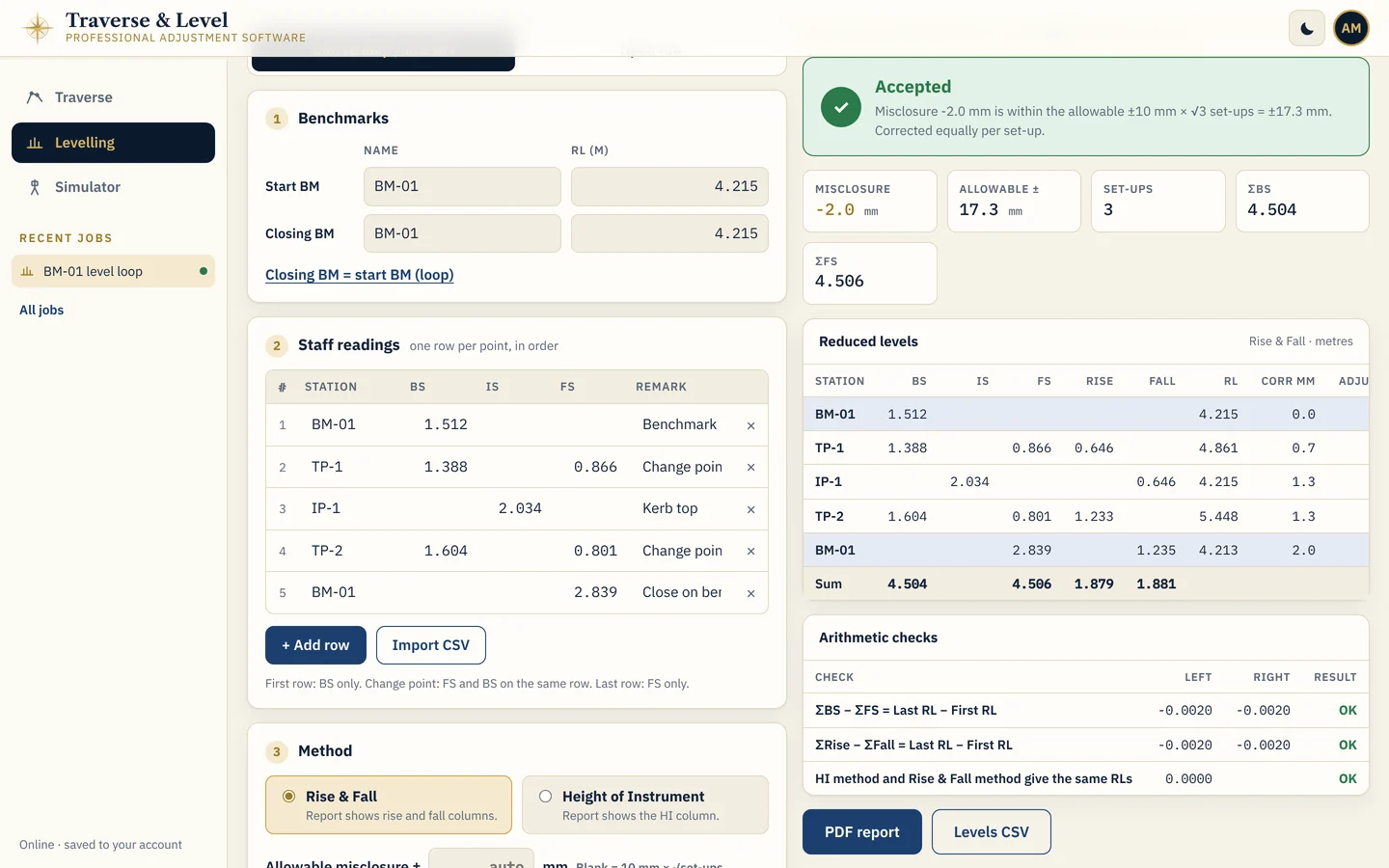
11Levelling result
Misclosure against the allowable, reduced levels, corrections, adjusted RLs and the arithmetic checks.
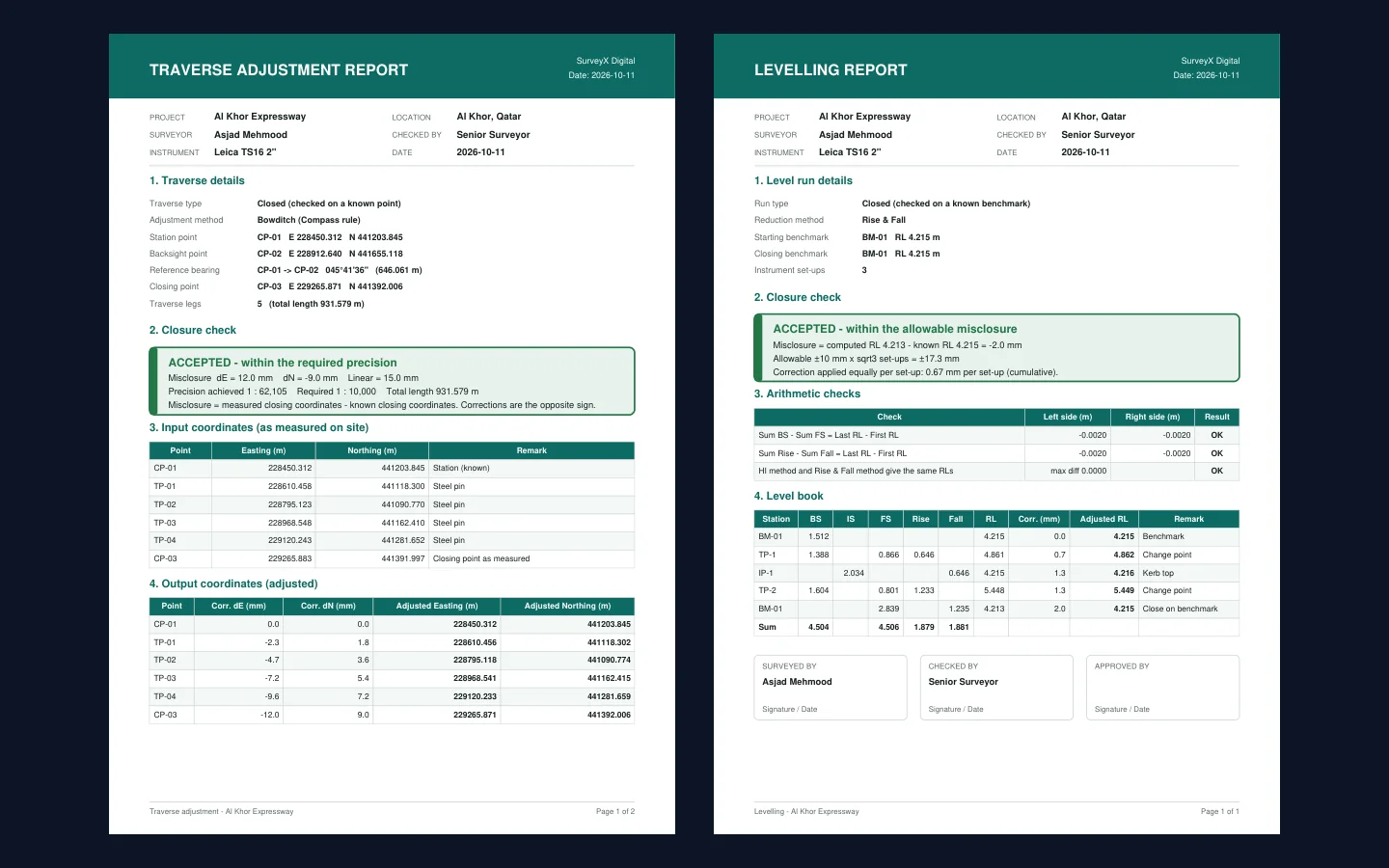
12PDF reports
Traverse and levelling reports with your report details and boxes for Surveyed, Checked and Approved by.
Simulator and sharing
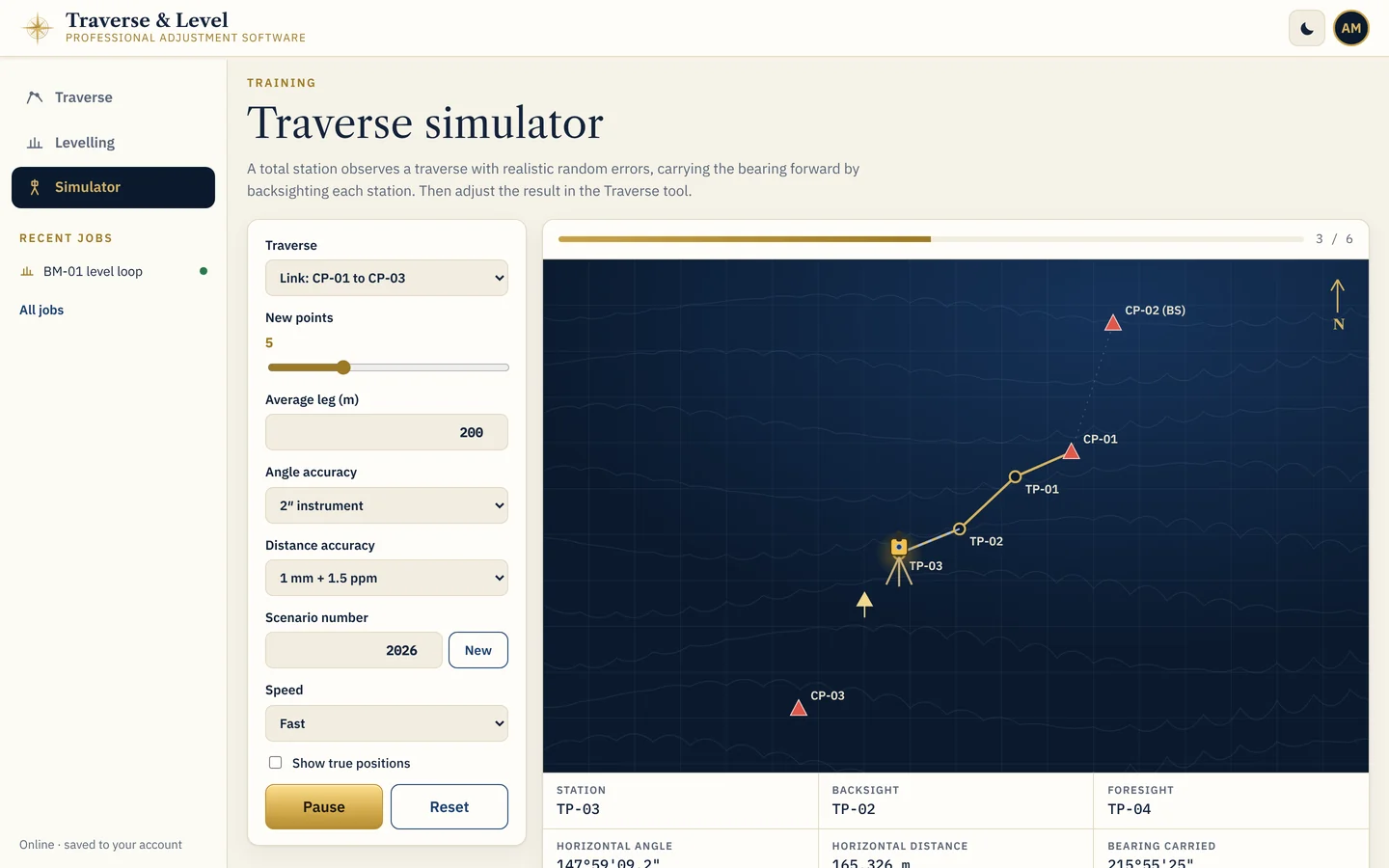
13Traverse simulator
Choose a link or loop, the instrument accuracy and a scenario, then watch the total station observe it.
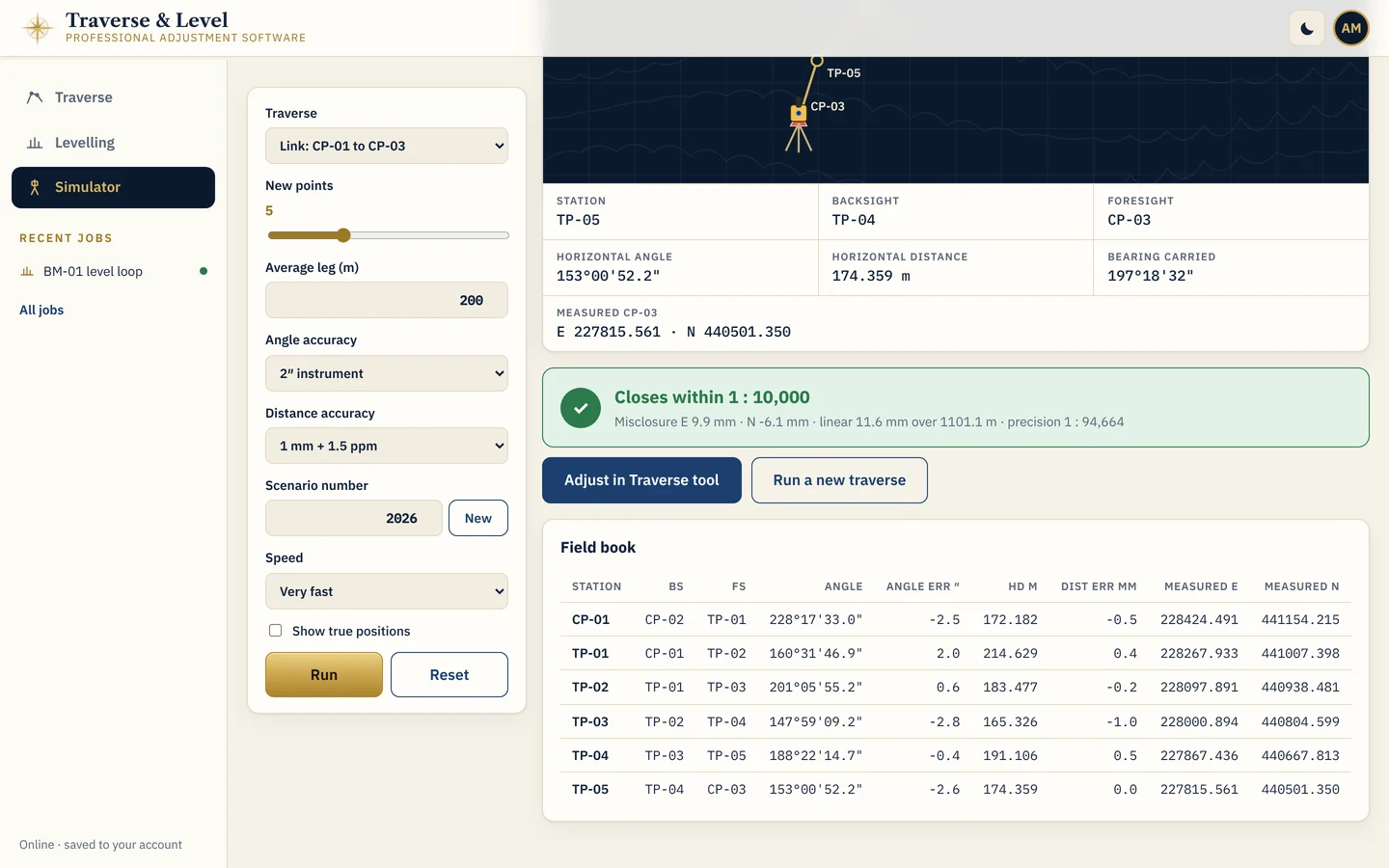
14Simulator result
Misclosure and precision, the field book with every random error, and Adjust in Traverse tool.
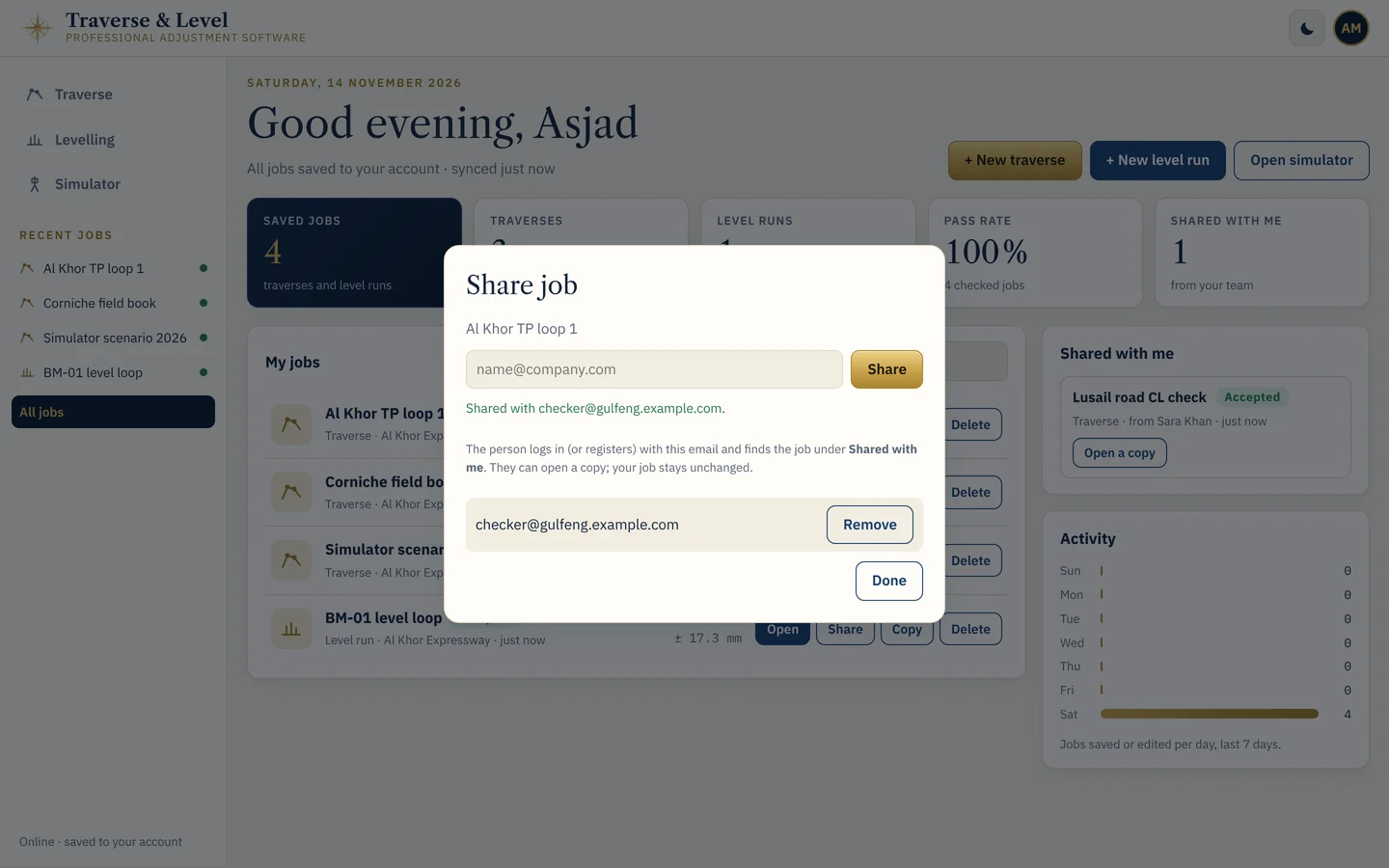
15Share a job
Type a colleague's email. They find the job under Shared with me; Remove stops sharing.
How it works
Six steps from login to report
- 1
Open the app
Open the web app in Chrome, Edge, Safari or Firefox, or run the Windows program.
- 2
Register or log in
Use your exceltokml.com account, or create one free. After your first login the app also opens offline.
- 3
Type the known points
Station, backsight and closing point for a traverse; start and closing benchmark for a level run.
- 4
Enter the site data
Type the measured coordinates or the field book (angles and distances), or the level book; paste the rows from Excel, or import a CSV.
- 5
Check and adjust
Choose Bowditch, Transit, Equal or least squares, or Rise & Fall or HI, and read Accepted or Rejected at once.
- 6
Save, report and share
Save the job to your dashboard, download the PDF report and share it with the people who need it.
Good to know
- A mathematical close is not an acceptance decision: you and your checker sign off the survey.
- Never lower the required precision just to make a traverse pass. Check the closing point, then each point against the field book.
- The plan sketch and the plots are guides, not certified drawings.
- Jobs saved in the web app go to your exceltokml.com account. Jobs saved offline upload by themselves when you are back online.
- The Windows program is the web app in its own window: log in with the same account and you see the same jobs. Open it once with internet; after that it also opens offline.
- Logging out of the app also logs you out of exceltokml.com. Change your password from your account page on this website.
Get it
Use Traverse & Level 2.2.0
Free. Open it in the browser with your Excel to KML account, or download the Windows program.
Web app
Chrome, Edge, Safari or Firefox, on a computer or a phone. Jobs are saved to your account, shared with your team, and the app keeps working offline after your first login.
Open the web appWindows program
Installer for Windows 10 and 11. Adds Start menu and desktop shortcuts, needs no administrator rights and updates itself. Log in with your Excel to KML account: the same jobs as the web app.
Sample files
Practise before your own job. The manual's Sample files page shows how to use them.
- sample-traverse-site-coordinates.csv · Site coordinates of the example traverse. The first lines give the known points to type in step 1.
- sample-level-book.csv · The example level book: a closed loop on BM-01, RL 4.215.
- sample-field-book.csv · The same site as a field book: angles and distances with two side shots and levels. The first lines give the known points and the closing leg.
- sample-data.xlsx · The three samples in Excel, ready to copy and paste.
- sample-traverse-report.pdf · The PDF report the example traverse produces.
- sample-field-book-report.pdf · The PDF report of the field book: angular and level checks, angles, side shots, latitude and longitude.
- sample-field-book.kml · The field book traverse and its side shots for Google Earth.
- sample-level-report.pdf · The PDF report the example level book produces.
Guides: adjusting a closed traverse by the Bowditch rule, reducing a level book and misclosure and precision.
Need a quick check in the browser? Try the free online traverse adjustment. Questions or a feature request? Write to us.